Home › Blog › PDF & Documents
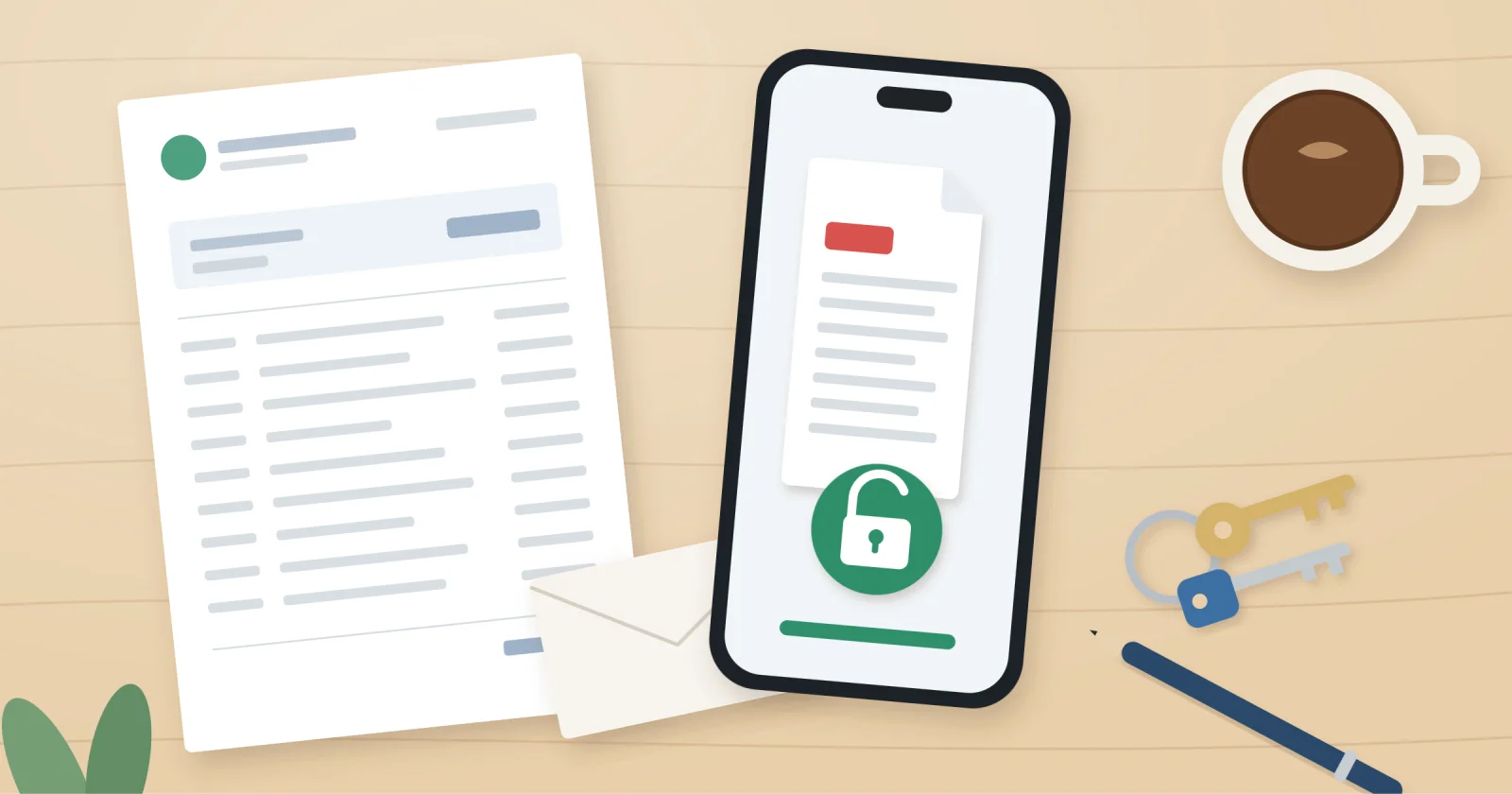
Your bank emailed your statement as a locked file, and now your mortgage broker or letting agent says they cannot open it. This guide shows you how to remove password from bank statement PDF files on any phone or computer, for free, and what to do if you would rather not remove it at all.
Why your bank statement has a password in the first place
Many banks and card providers send emailed statements as a password protected PDF. Email is not a very private way to send account numbers, balances and your home address, so the password is there to stop anyone else reading it if the email goes astray.
The password is usually something only you would know, such as part of your date of birth or postcode. Your bank's email or covering letter normally explains the format.
That protection is great until you need to pass the statement on. A letting agent referencing a tenant, or a lender checking your income, will often ask for files they can open straight away without phoning you.
Before you start: three quick checks
- You need the password. Every method below asks you to open the file first. If you have forgotten it, contact your bank rather than trying to break it.
- Ask whether a fresh download would be easier. Statements downloaded from your online banking are often not password protected, unlike emailed ones.
- Keep the original. Save the password-free copy as a new file so you still have the version your bank sent.
One more thing. Never change anything in the statement itself. Lenders and agents check these documents carefully, and an edited statement can cause serious problems with an application. If you are unsure what a lender will accept, ask them or a regulated mortgage adviser.
How to remove password from bank statement PDF files on any device
The trick on almost every device is the same. You open the file with the password, then save or print it as a brand new PDF. The new copy does not carry the old password, so it acts as a free PDF password remover without installing anything.
On a Windows PC or Chromebook (using Chrome or Edge)
- Right-click the PDF and open it with Google Chrome or Microsoft Edge.
- Type the password when asked.
- Press Ctrl and P to open the print window.
- Set the printer or destination to "Save as PDF" (or "Microsoft Print to PDF").
- Click Save, give it a clear name such as "Statement-October-copy.pdf", and choose where to keep it.
- Open the new file to check it opens without a password and every page is there.
On a Mac
Open the statement in Preview and enter the password. Choose File then Print, click the PDF menu at the bottom of the window, and pick Save as PDF. The saved copy opens without one.
On an iPhone or iPad
Open the PDF from the Files app or your email and type the password. Tap the share button, choose Print, then use the share button in the print preview to save a new copy to Files. Send that copy, not the original attachment.
On Android
Open the statement in the Google Drive PDF viewer and enter the password. Tap the three-dot menu, choose Print, set the printer to Save as PDF, and save the new file to your phone.
If the print option is greyed out
Some statements are locked against printing as well as opening. In that case, the save-as trick will not work. Download the statement again from your online banking, ask the bank for a copy without a password, or use a paid PDF editor such as Adobe Acrobat Pro, which has a proper option for removing security.
Free websites, desktop tools or a fresh download?
If you search for "unlock PDF", you will find plenty of free websites. They work, but think about what you are uploading: your full name, address, account number and every payment you made that month.
| Option | Cost | Privacy | Good for |
|---|---|---|---|
| Print to PDF in your browser | Free | Stays on your device | Most emailed statements |
| Fresh download from online banking | Free | Stays with you and your bank | When printing is blocked |
| Paid PDF editor | Subscription | Stays on your device | Regular paperwork |
| Free upload websites | Free | Your statement goes to a third party | Only if you trust the site |
There is also a simpler route. Send the locked file as it is, and give the lender or agent the password separately by phone or text. Never put the password in the same email as the statement.
Keeping your statements private with JisDoc Studio
If you deal with statements, payslips and ID often, for a remortgage or a new tenancy, it helps to keep them somewhere private. JisDoc Studio is the document tool in our pocketapps.store membership, and it installs from your browser onto iPhone, iPad, Android, Windows, Mac or Chromebook with no app store and no adverts.
Your files are saved on your own device rather than our servers, and there is optional encrypted sync if you open a statement on your phone and send it from a laptop.
To be clear, it will not get past a password you do not know, and it cannot tell you which documents a lender wants. For a statement you can open, the free browser method above is often all you need.
Frequently asked questions
Is it legal to remove the password from my own bank statement?
Yes, if it is your statement and you know the password, saving a copy without the password is generally fine. You must not change the contents. If you are unsure, check with your bank.
Why can't my letting agent open my bank statement?
It is almost certainly a password protected PDF, and they do not have the password. Either send a copy without the password using the steps above, or give them the password separately.
Will removing the password change the statement?
No. Saving or printing to a new PDF keeps the same pages and figures. Open the new copy and check every page before you send it.
What if I have forgotten the password?
Check the email or letter from your bank, as it usually explains the format. If that fails, download the statement again from online banking or contact your bank.
Send it with confidence
Open the statement, save a new copy without the password, check every page, and keep the original safe. Most people can do it in a couple of minutes with the browser they already have.
If you want a private home for your statements and other paperwork, try JisDoc Studio with a 7-day free trial. Membership is £7.99 a month, £39.99 for 6 months or £59.99 a year, and you can cancel any time. You can also see all 55 apps included.